The ATOM Lite
A limited functionality KISS TNC Bridge can run on custom firmware built for the M5Stack ATOM Lite. This device is the size of 5 stacked US quarters, with a USB-C plug for power and a button and LED on top. The firmware can bridge Bluetooth Classic TNCs like the one in the Kenwood TH-D75 to Bluetooth Low Energy used by Apple devices. This device is a direct replacement for the beloved but now discontinued Island Magic B.B. Link.
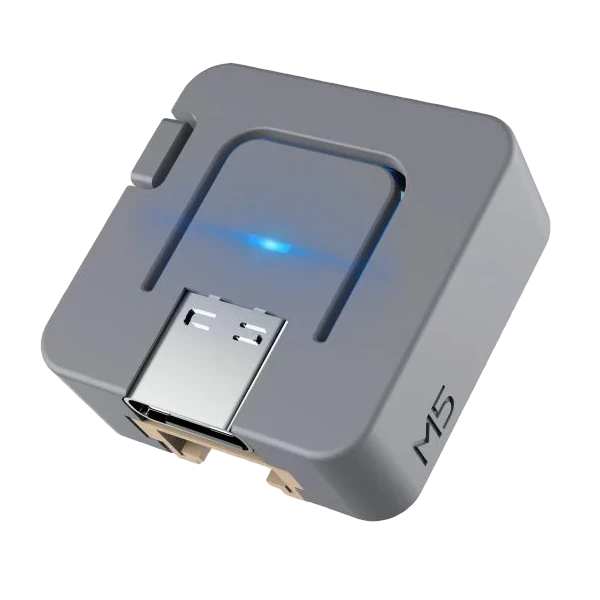
With one USB-C port for power, a button, and an LED, the ATOM lite is the smallest KISS TNC bridge you can build.
An ATOM Lite is less than $10 plus shipping, from M5Stack or Amazon, though prices and availability vary.
What can it do?
The custom KISS TNC Bridge firmware for an ATOM Lite turns it into the lightest, smallest, and lowest power bridge there is. One you have the firmware installed, it starts up in a couple of seconds and automatically reconnects to devices it was previously connected to. Take it with your radio and it's ready to use in less time than it takes you to get your radio on the right frequency.
The tiny size and power consumption limit the functionality of this device. It doesn't do TCP (yet, maybe I will be able to cram it into the firmware), and it can't run multiple TNCs at the same time. But it can solve the problem of connecting to radios with non-ideal TNCs, like the TIDRADIO H9 or the Kenwood TM-D750, and bridging them to a standard BLE KISS TNC that will work with anything. You can connect multiple apps to the bridge so they can share the TNC.
The custom firmware for this devices enables it to be managed using the same tools as any other bridge device in this project. When we build the iOS bridge manager app, it will be able to manage and configure bridges running on the ATOM Lite.
Why the ATOM Lite
- Both kinds of Bluetooth The Kenwood TH-D75 and TM-D750 offer KISS over Bluetooth Classic. Phone apps use Bluetooth LE. The ATOM Lite's ESP32 chip does both at the same time. The newer ESP32 chips (S3, C3, C6) have only LE, so they can't reach these radios.
- Small and cheap At 24 mm square and 5.5 grams it's the same footprint as a US quarter and weighs as much as a sheet of paper. It easily fits in a pocket, a go-kit, or a bag. Buy it for $8 plus shipping.
- A button and a lightUse the button to pair a radio, and the light tells you what's going on. It reconnects to everything when it powers on. Set it up at home and take it into the field and it works with no app and no computer. The light shows what's happening.
- USB-C powerThis ATOM Lite will run for days from an average phone battery bank. It uses 15% of the power of a Raspberry Pi 4. Any USB-C power source will work: a phone charger, a computer, a USB power bank, your iPhone USB-C port, or the Tail Bat.
| Chip | ESP32-PICO-D4, two cores at 240 MHz |
|---|---|
| Flash | 4 MB |
| Bluetooth | Classic and LE |
| USB | USB-C, for power and for installing firmware |
| Controls | A button on top, a restart button on the side, one RGB light |
| Size | 24 x 24 x 9.5 mm, 5.5 g |
| Not used | Wi-Fi, the infrared LED, the Grove port and the pins |
The Tail Bat
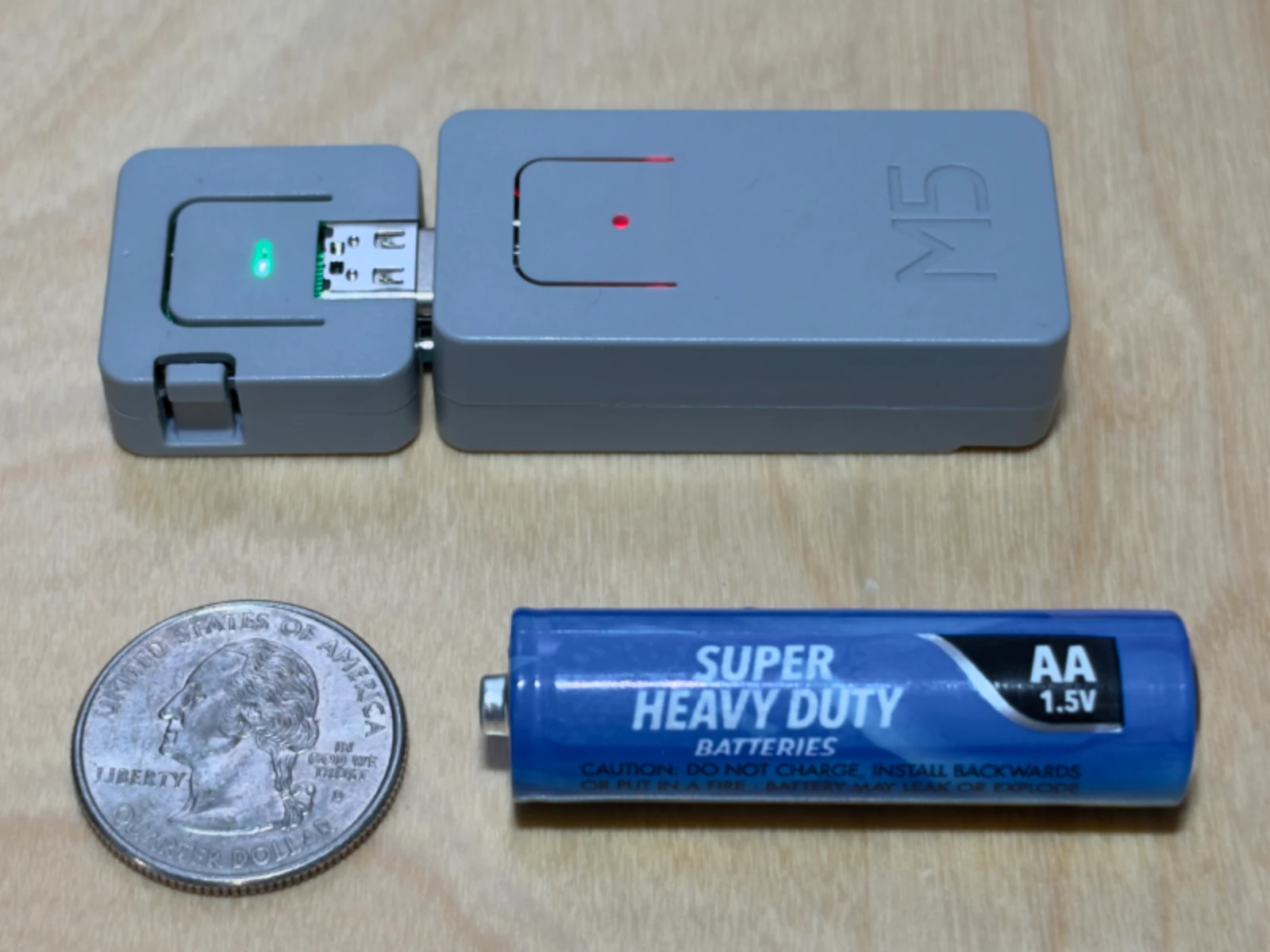
M5Stack's Tail Bat is a small battery the ATOM Lite plugs into. The Tail Bat is a bit larger than a AA battery and can power the Atom Lite for an hour or two. It has two USB-C ports, one male port which plugs into the ATOM lite, and a female port used to charge it. The Tail Bat charges while the ATOM Lite is consuming power on the other side, and it passes data through, so you can plug the Tail Bat into your computer and still install firmware via USB-C. It's $10 plus shipping from M5Stack.
The buttons
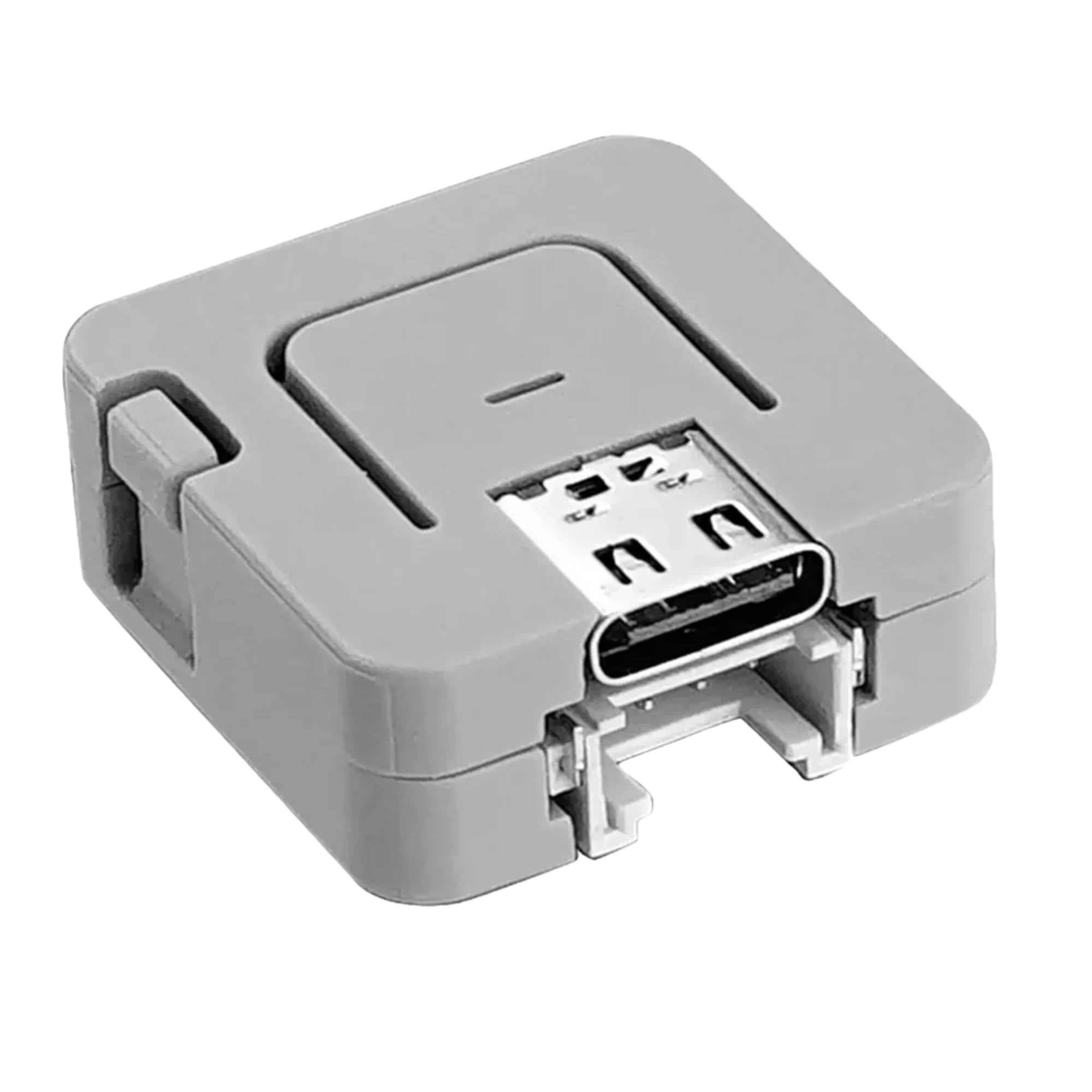
The top button
The side button
The light
Bridge status
The LED on the top of the ATOM Lite shows what the bridge is doing. In some cases things can be happening at the same time. The LED shows the most important status. This table lists more important statuses towards the bottom.
- Starting up
-
Power onred, yellow, cyan, green
The firmware has started. Then the light shows the bridge's status.
- All is well
-
Greensteady
Bridging: the radio is connected and a phone's KISS app is using it.
-
Cyansteady
Ready: the radio is connected, and no app is connected yet.
- Waiting for the radio
-
Yellowslow blink
The radio is paired but not connected: it's off, out of range, or the device has just started. It tries again every 15 seconds.
-
Yellow and bluetaking turns
No radio is paired yet, as after installing or a reset. Pair one.
- Busy
-
Bluefast blink
Looking for your radio to pair with, for up to a minute. Press the button once to stop.
-
Magentaslow blink
In authorization mode: one management app can be authorized with the authorization code, for up to 5 minutes. Press the button once to stop.
-
Whitefast blink
Installing a firmware update over Bluetooth, about 30 seconds. Don't unplug it.
- Problem
-
Reda repeating sequence of three fast blinks and a pause
An error has occurred. See below for how to fix it.
If you're color blind
The light colors and patterns have been carefully selected to work well even if you are color blind. For example, an error blinks red three times and pauses, unlike pairing's steady blue blink. The yellow states blink slowly, one of them with blue. Green and cyan are both steady. If you can't distinguish the colors, you can check whether your app is connected, which corresponds to steady green.
Feedback
The LED can also provide feedback about an event that has occurred on the bridge.
-
Three green flashes
A radio paired, or a management app was authorized.
-
Three yellow flashes
Pairing didn't work, or you stopped it. The device goes back to the radio it had.
-
A white flick
A packet from a phone, which the radio will transmit.
-
A short dip
A packet from the radio to a phone.
-
Magenta, blue, white, three times
A management app asked the device to identify itself, so you can tell which one it's talking to.
-
Three white flashes
The reset is complete and the device will now restart.
Light settings
The LED on the ATOM Lite is very bright, which can be awesome, but can also be very annoying. The firmware has a setting which controls how the LED behaves when everything is working normally. You set it when you install the firmware. In the future you'll be able to change it from a management app.
Bright The default
The LED at its full brightness. Easy to read across the room or in direct sunlight.
Dim
The LED at half brightness. Better for your desk or other indoor use, where full brightness burns your eyeballs.
Breathe
A long, slow pulse, one breath every 8 seconds. Shows it's working without a steady glow.
Dark
Off. Press the button once to see the state for 30 seconds. While it's dark, pressing the button only wakes it. To pair a radio you press once to wake, then press twice to initiate pairing.
After power-on it stays lit for 30 seconds, so you see it connect.
These light settings only apply to the All is well statuses. Feedback for packet receive and transmit events are shown unless you are in Dark mode.
Pairing a radio
After installing the KISS TNC Bridge firmware, you'll need to pair the bridge with your radio.
- Put the radio in pairing mode. On a TH-D75 or TH-D74: Menu > Bluetooth > Pairing Mode.
- Press the top button twice. Blue, fast blink: it's looking for the radio, for up to a minute.
- The radio shows a six-digit number. Accept it on the radio.
- Three green flashes, then cyan: paired and connected.
The ATOM Lite bridge can only pair with one radio at a time. Pairing a new one replaces the old one. If the pairing fails or you stop it, your previous radio remains paired.
Authorize a management app
You can configure and view the status of your ATOM Lite using several of the management apps in the KISS TNC Bridge project. For this device, you need an app that can manage via Bluetooth. You authorize a management app once, with the authorization code shown when you installed the firmware. The bridge only accepts the authorization code when it's in authorization mode.
- Hold the button for 3 seconds. It turns magenta: let go.
- Magenta, slow blink: it's in authorization mode for 5 minutes.
- Authorize the management app, for example
ktbctl, by typing the authorization code.
Authorization mode ends after one management app is authorized, after three wrong codes, or when you press the button. Lost the code? A clean install makes a new one.
Reset
Reset clears every setting, the radio pairing and every authorized management app, and puts the device back the way it was just after installing. It keeps the firmware, and it keeps the authorization code. To get a new authorization code, do a clean install instead.
Start with the top button held down, then:
- Press and hold the top button.
- Press and let go of the side button, still holding the top one.
- Press and hold the top button.
- Plug it in, or put it on its Tail Bat, still holding.
While still holding the top button:
- The power-on colors.
- Steady white for 3 seconds. Let go now if you've changed your mind. The reset is cancelled and no changes are made.
- Three white flashes: reset. Now you can release the button.
- Yellow and blue: no radio. Pair one.
When the light blinks red
Red means something the device can't fix by retrying.
Try these in order:
- Restart it: press the side button, or unplug it and plug it in again. Some problems are a one-off.
- Connect it to a computer and run
ktbctl device info, which says what's wrong. - Install the firmware again with Update, which keeps your settings.
- Still red: install with Clean install. It starts the device fresh, with a new authorization code.