Install the firmware
Use this page to install the KISS TNC Bridge firmware over a USB cable to an M5Stack ATOM Lite. As part of the installation, you'll do the initial configuration of the bridge. It only takes a few minutes for the whole process.
Here's what you'll need:
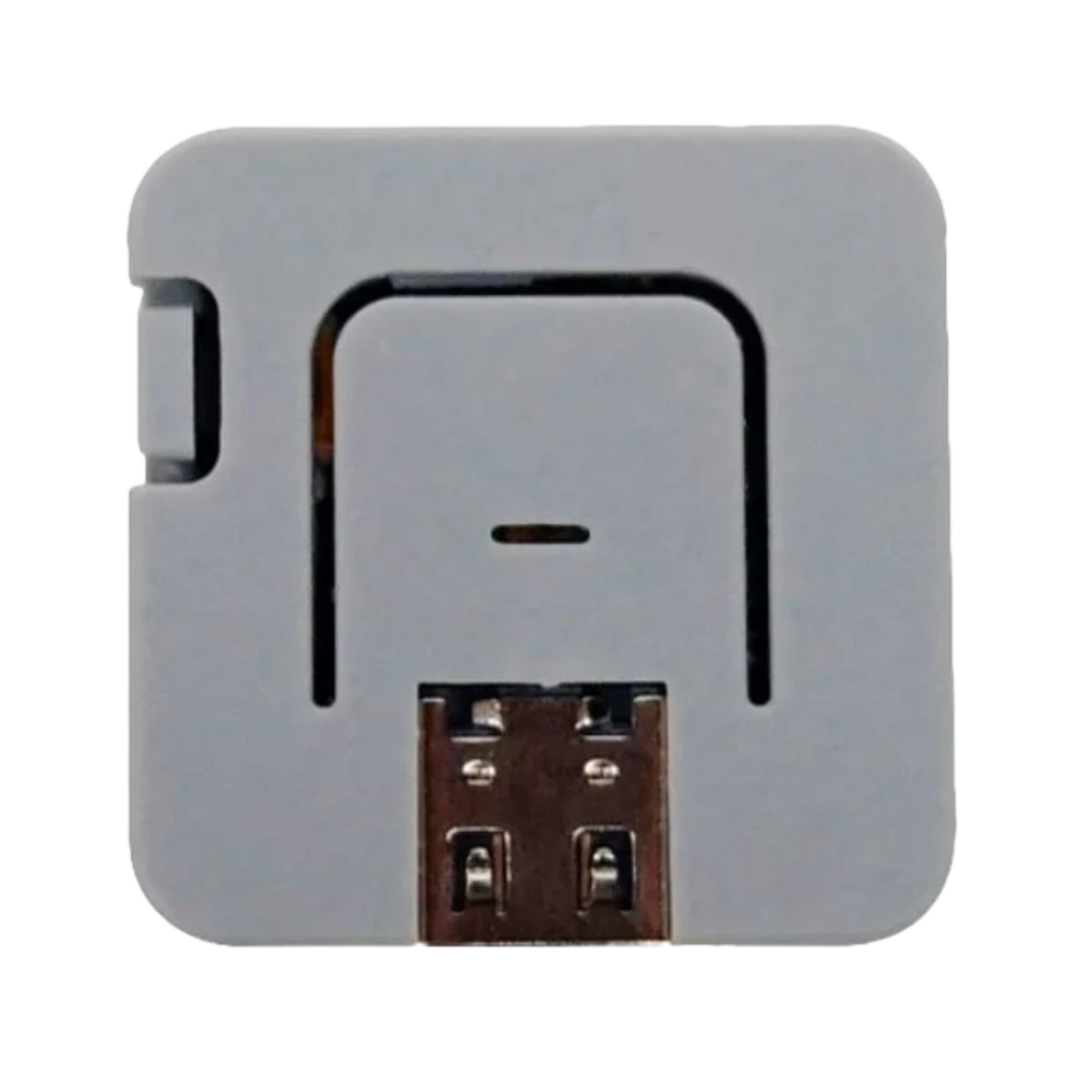
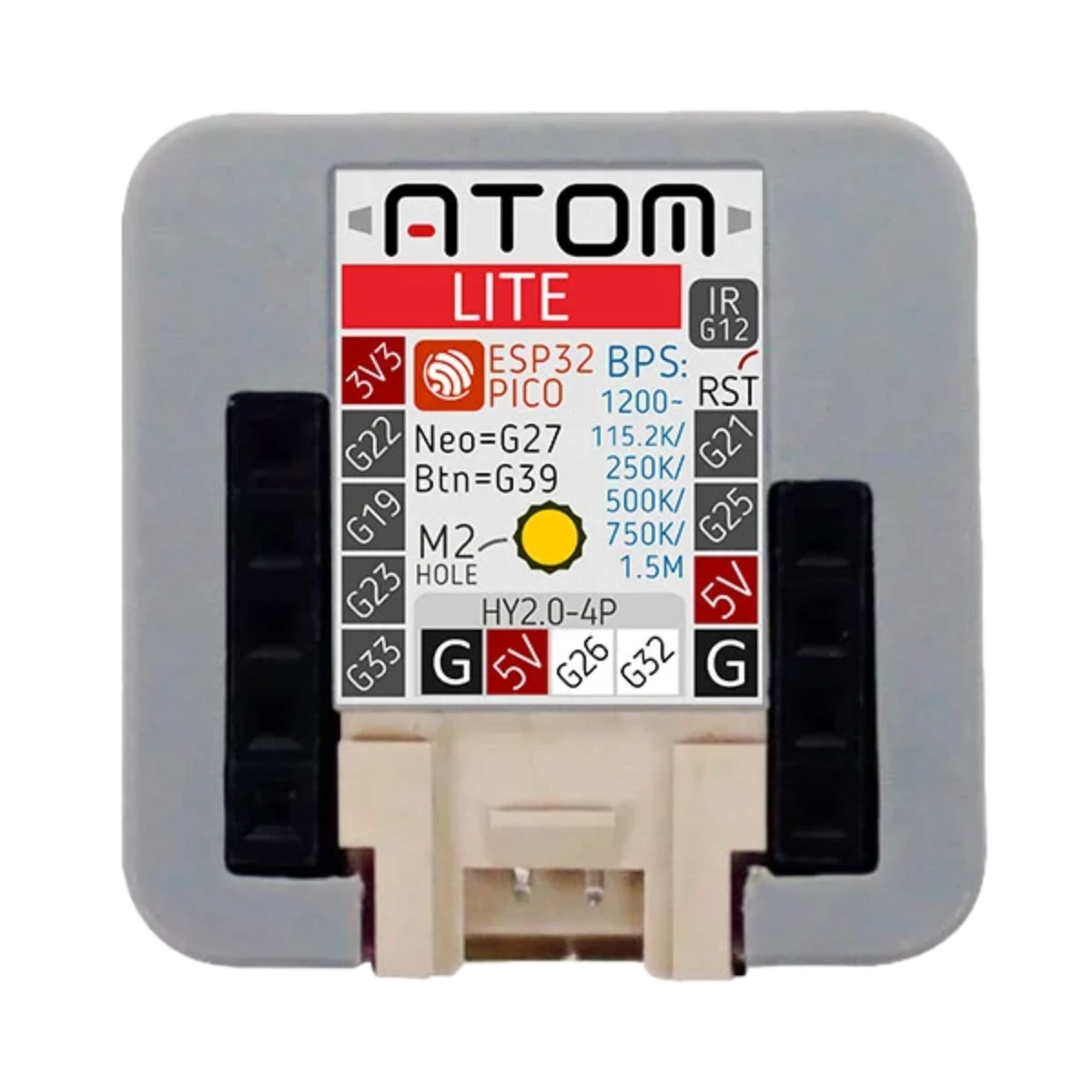
- An M5Stack ATOM LiteThis page will install the firmware on your device. Learn more about this device and how the firmware works on it.
- A USB-C cable that carries dataIf you use one that is only for charging, your computer won't be able to connect to the device.
- A Chromium based browser on a computerChrome, Chromium, Edge, Opera, Brave, and Vivaldi all work on Windows, macOS, Linux or ChromeOS. Doesn't work in Safari or Firefox, or on an iPhone or iPad. Won't work on most Android devices.
This installer needs a different browser
It talks to the device over USB with Web Serial, which only Chrome, Edge and Opera have, on a Windows, macOS, Linux or ChromeOS computer. Safari, Firefox, iPhones and iPads don't.
Open this page in one of them, or install from a terminal with ktbctl device flash (how). Everything else on this page, the help and the release notes, works here.
-
1!
Connect the device
· KISS TNC Bridge other firmware
Plug the ATOM Lite into this computer using a USB-C cable.
Close any other programs that might be using the device.
You connected on an earlier visit.
- Opening the USB port
- Connecting to the device
- Reading current device settings
This may take a few seconds, and the device will restart when it's finished.
-
2!
Choose the firmware
· update, settings keptclean install
Firmware- Notes
That's older than the on the device. Going back works, but settings a newer version wrote may not all carry over; a clean install starts fresh.
-
3!
Install
Installed and verified in s
Ignore the LED on the device while the firmware is installing. The progress bar and any error messages below are a better indicator of installation status.
Don't unplug the device
Keep the device connected to your computer until the installation finishes. It only takes a minute or two.
The light should flash its power-on colors, then blink yellow and blue, or show its state if a radio is paired. What the colors and patterns mean
Installed and verified s- Waiting for KISS TNC Bridge to start...
-
4!
Set up the device
·
The light is blinking red. An error has occurred that the device can't fix by itself. See when the light blinks red.
The light is blinking yellow and blue: running, with no radio paired yet. What the colors and patterns mean
The light is blinking yellow. Your radio is paired, but off or out of range. What the colors and patterns mean
Your radio is connected, and no app is currently using it. What the colors and patterns mean
Bridging. Your radio is connected and an app is using it. What the colors and patterns mean
KISS TNC Bridge is installed
Your device is ready to pair with a radio.
- Firmware
- Name
- Light
- Authorization code
- On the radio, set Menu > Configuration > Interface > KISS to Bluetooth.
- On the radio, open Menu > Bluetooth > Pairing Mode.
- Double press the device's top button. Blue, fast blink: it's looking for the radio, for up to a minute.
- The radio shows a six-digit number: press OK on the radio within 30 seconds.
No device was chosen
If the list was empty, your computer can't see the device.
- Try another cable, some USB-C cables carry only power.
- Try another USB port, directly on the computer rather than on a hub.
- Unplug the device, wait a moment, and plug it in again.
The port won't open
Another program is probably using it. Close any serial monitor, ktbctl or IDE, then try again.
On Linux, your account needs permission to use serial ports: add it to the dialout group (uucp on Arch), then log out and back in.
sudo usermod -aG dialout $USER
This isn't a supported device
The page found an with of flash. The firmware runs on the M5Stack ATOM Lite (an ESP32-PICO-D4 with 4 MB). Nothing was written.
The page couldn't reach the device's bootloader
- Unplug the device, plug it in again, and try again.
- Try another cable or USB port.
The device's buttons don't help here: neither puts the ATOM Lite in download mode.
The list of firmware didn't load
This site couldn't be reached, or had a problem. Check your connection and try again.
No firmware yet
No firmware for the has been released yet. Follow the project to hear when it is.
The firmware didn't download
Nothing was written: the device is as it was. Check your connection and try again.
The download is damaged
The firmware file didn't match its checksum, so nothing was written. The device is as it was. Try again; if it keeps happening, open an issue.
Writing the firmware failed
The device stopped answering while the firmware was written. Nothing is lost: the chip's own bootloader can't be overwritten, so it can always be installed again. If it fails again, try another cable or USB port.
The device was unplugged
The install stopped partway, so the device may not start until it's installed again. Plug it back in, connect, and install again.
Plug it back in and connect again to finish setting it up.
Plug it back in and connect again.
The firmware didn't answer
was written and verified, but the device hasn't answered for 15 seconds.
- Restart the device with its side button, or unplug it and plug it in, then connect.
- Try a clean install.
- Try another cable or USB port.
If its light blinks red, see when the light blinks red.
The device started its old firmware
was written, but the device is running : the new firmware didn't start, so the device went back to the one it had. Try again, or try a clean install.
The device didn't take its settings
The firmware is installed: try again to finish setting it up.
Something went wrong
Details
Help
My device isn't in the list
Try another USB-C cable, some only carry power. Try another USB port, and unplug and replug the device. Try clicking "My device isn't in the list" under the Connect button which shows every serial port, not just the likely ones.
Linux: the port won't open
Add your account to the dialout group (uucp on Arch) and log in again.
Update or clean install?
Update installs new firmware and keeps all your existing settings on the bridge. Clean install installs the firmware and erases all settings, including paried radios, and generates a new authorization code.
I lost the authorization code
Install again with Clean install. The device gets a new code, and management apps authorized before have to be authorized again.
Android phones and tablets
Recent versions of Chrome on Android have Web Serial, so the installer may start there, but it isn't well tested, and many Android phones won't show the device at all. A computer is the sure way.
Install from a terminal
ktbctl device flash installs the same firmware without a browser.
Release notes
Every version's notes are on GitHub.
What the light on the device means
All the light colors and blink patterns are explained on the ATOM Lite page.