Core2 v1.3
The M5Stack Core2 is the KISS TNC Bridge with a screen. It's a 54 mm square box with a 2 inch color touch screen, a built-in battery and a USB-C port. It bridges the same radios as the ATOM Lite: Bluetooth Classic TNCs like the one in the Kenwood TH-D75, and Bluetooth LE TNCs like the TIDRADIO TD-H9's, to the Bluetooth Low Energy KISS TNC that iPhone and iPad apps use. The screen shows you the radio, the apps using it and the packets going each way, and you pair a radio right from the screen.
A touch screen, a battery and a power button: the bridge you can watch, and set up, with no computer and no app.
Get the Core2 v1.3, SKU K010-V13. The firmware only runs on this exact model. It's around $55 plus shipping, from M5Stack or Amazon, though prices and availability vary.
What can it do?
The Core2 runs the same KISS TNC Bridge firmware as the ATOM Lite, so it bridges the same way: it connects to your radio's TNC, and up to two KISS TNC apps at a time can connect to the bridge and share it. It starts in a couple of seconds and reconnects to the radio it had on its own.
The screen is what sets it apart. Three pages, picked with the tabs along the top:
- Bridge is where it starts. It shows the radio, whether it's connected and for how long, and the packets received from it and sent to it, each with a light that flickers as one goes by. Below that, the apps connected to the bridge, with their packets too, under the name apps see when they look for the bridge.
- TNC shows the radio the bridge has, and is where you pair a new one.
- System shows the battery, the power, how long it's been running and how long its last run lasted, the firmware version, the name and Bluetooth address, and any errors. It's also where you change the screen settings and the green light's, reset the device and turn it off.
Like the ATOM Lite, it doesn't do TCP, and it bridges one radio at a time. Everything you can't do on the screen, like renaming it, is done from a management app.
Why the Core2
- Both kinds of Bluetooth The Kenwood TH-D75 and TM-D750 offer KISS over Bluetooth Classic, and phone apps use Bluetooth LE. The Core2's ESP32 chip does both at the same time. The newer ESP32 chips (S3, C3, C6) have only LE, so they can't reach these radios.
- A screen No colors or blink patterns to learn. The screen says in words what the bridge is doing, which radio it has, and which apps are using it. When something goes wrong, it tells you what.
- No computer needed Pair a radio, check the battery, change the screen settings, or reset it, all from the touch screen.
- A battery inside Unplug it and take it with you. It charges from any USB-C power source, and it keeps bridging while it charges. The System page shows the battery and how long the last run lasted.
| Chip | ESP32-D0WDQ6-V3, two cores at 240 MHz |
|---|---|
| Memory | 16 MB flash, 8 MB PSRAM |
| Bluetooth | Classic and LE |
| Screen | 2 inch, 320 x 240 color, capacitive touch |
| Power | A built-in battery, and USB-C to charge it and to install firmware |
| Controls | The touch screen, three touch keys below it, a power button and a reset button |
| Size | 54 x 54 x 16 mm |
| Not used | Wi-Fi, the speaker, the microphone, the vibration motor, the microSD slot, the motion sensor, the clock and the Grove port |
The buttons
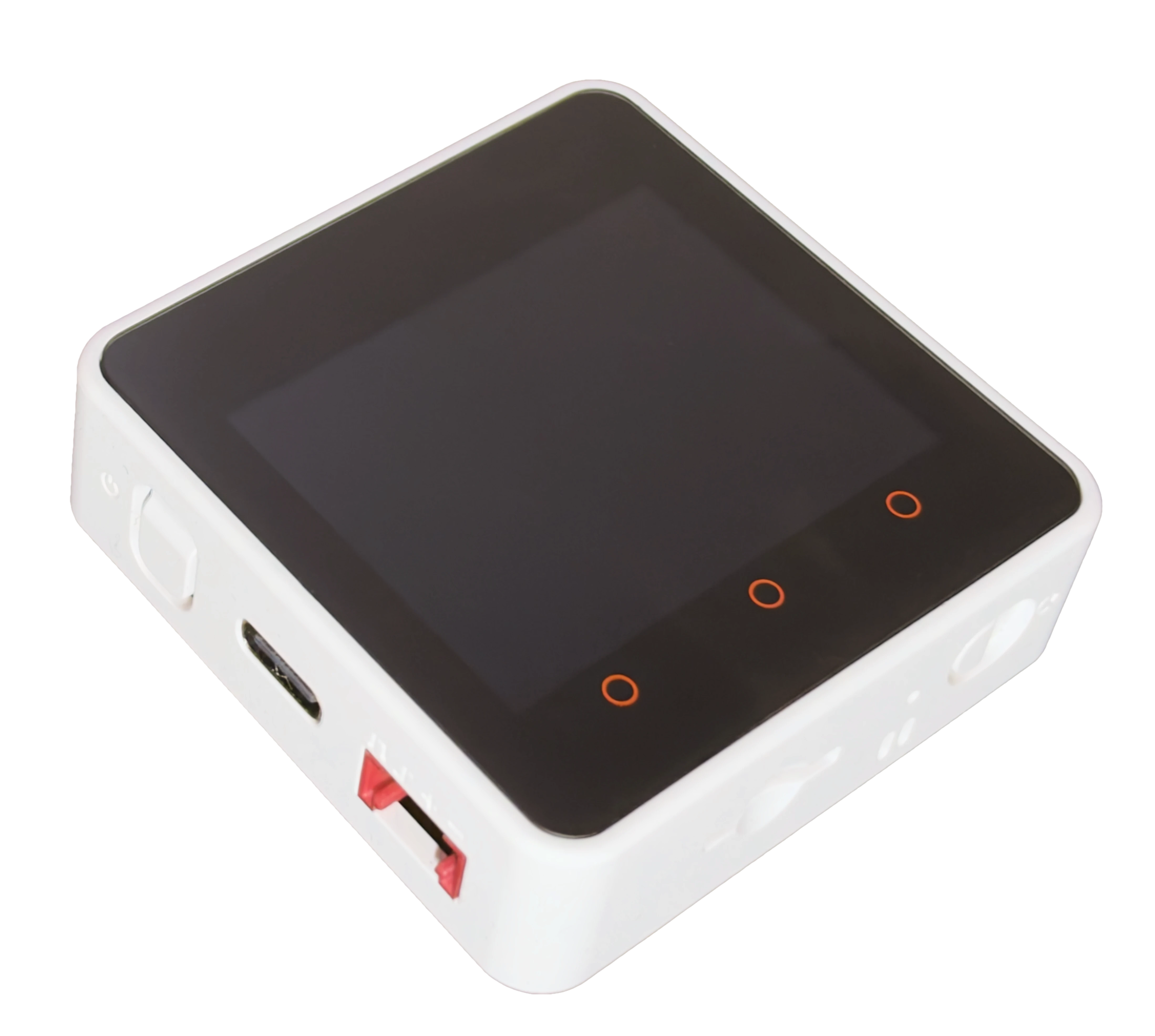
The power button
The reset button
The touch keys
When a screen has something for the touch keys, its bottom edge shows a label above each key that does something. Tap the key, or the label on the screen. A key with no label does nothing. Each key always means the same kind of thing:
A tap counts when you lift your finger inside the key it started on, so sliding off a key, or picking the Core2 up, doesn't press anything. While the screen is off, the first touch only turns it on, so a tap you can't see never presses anything.
Initial configuration
After you install the firmware, the Core2 starts on the Bridge page. There's no radio yet: it says No radio and Not paired. Before you take it anywhere:
- Keep the authorization code the installer showed you. It's how you'll authorize a management app.
- Choose how the screen behaves. On the System page, tap Screen. Each setting takes effect as soon as you tap it. Tap Back when you're done.
- Choose how the green light behaves. On the System page, tap LED.
- Pair your radio.
- Charge the battery. On USB power the battery at the top right shows green stripes while it charges, and solid green when it's full.
Screen settings
The screen stays at full brightness while you use it. These settings say what it does once you stop, after the timeout: 15 seconds, 30 seconds (the default), 1 minute or 5 minutes.
The screen also turns itself on, and starts the timeout again, when the radio connects or disconnects, when an app connects or disconnects, when there's an error, and when a management app asks the bridge to identify itself.
The green light
With the screen dark, a Core2 that's bridging looks just like one that's turned off. The green light tells them apart. It's on the edge below the screen, next to the reset button. By default it breathes while the screen is dark, and blinks each time a packet goes to or from the radio.
To change it, tap LED on the System page. While the LED settings are open, the green light shows what they make, as if the screen were dark, so you can see what you pick. Each setting takes effect as soon as you tap it. Tap Back when you're done.
The green light stays off while the Core2 starts, while firmware is being installed, and once you power it off.
Pairing a radio
You pair a Bluetooth Classic radio, or select a Bluetooth LE TNC like the TIDRADIO TD-H9, from the TNC page: tap Pair or select, then tap your radio in the list. A Bluetooth LE TNC is listed only while nothing else is connected to it, so close any app using it first. Each radio's page has the radio's settings and the steps:
The bridge has one radio at a time. A new radio replaces the old one. If pairing fails or you cancel it, the bridge goes back to the radio it had.
Authorize a management app
You can configure and view the status of your Core2 using the management apps in the KISS TNC Bridge project. Over USB, a management app needs nothing: anyone with the device and a cable can manage it. Over Bluetooth, you authorize a management app once, with the authorization code shown when you installed the firmware. The bridge only accepts the authorization code when it's in authorization mode, for 5 minutes.
The Core2 can't start authorization mode from its screen yet. Start it from a computer, over USB:
- Connect the Core2 to a computer with a USB-C cable.
- Run
ktbctl --device PORT auth mode, with the Core2's port forPORT(ktbctl device listshows it). The bridge is in authorization mode for 5 minutes. - Authorize the management app by typing the authorization code.
Authorization mode ends after one management app is authorized, after three wrong codes, or when its time runs out.
Lost the code? ktbctl --device PORT auth code shows it over USB, or a
clean install makes a new one.
Reset
Reset clears the device's settings, forgets the radio, and removes every authorized management app. The firmware and the authorization code are kept. It's on the System page:
- On the System page, tap Reset (the left key). Reset? says what it clears. Below that is a bar, and under the bar an amber circle saying Hold.
- Hold your finger on the circle until the bar runs out, about 3 seconds. Lift your finger before then and nothing is cleared: the bar empties, and you can start again or tap Cancel.
- The Core2 says Settings cleared and restarts, with no radio.
Unlike the ATOM Lite, the Core2 has no way to reset by holding something while it turns on: its touch screen can't see a finger that was already there when it started. If the Core2 can't get to the System page, a management app connected over USB can reset it, or a clean install starts it afresh.